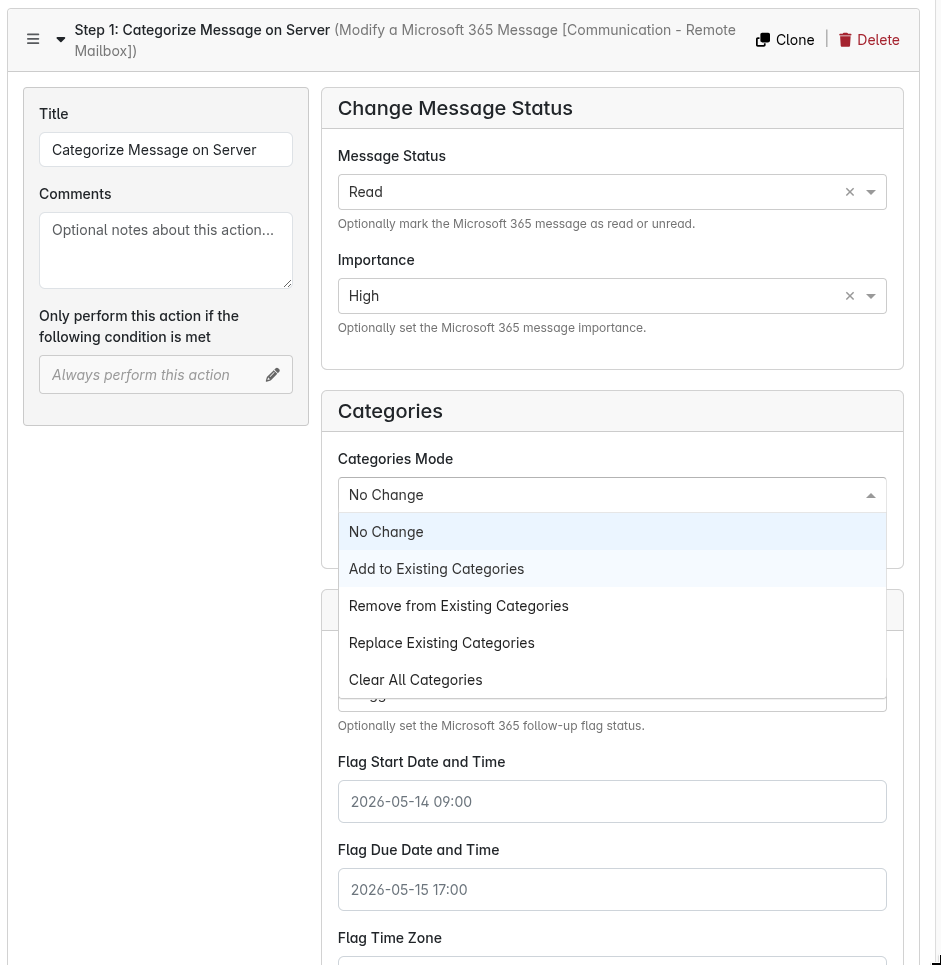
We’re happy to announce a new workflow step: Modify a Microsoft 365 Message.
We’ve added the ability for Remote Mailbox automations to reach back into the user’s Outlook mailbox and change the message that triggered the workflow. Until now, your workflows could read an incoming email and act on it elsewhere (create a ticket, send a notification, file the data away), but we left the original message untouched.
With this new step, you can mark messages read or unread, set importance, apply or remove Outlook categories, and set, complete, or clear follow-up flags (including start date, due date, and time zone). Everything happens on the original Microsoft 365 message in the mailbox your workflow is connected to.
We built this to unlock the kind of mailbox hygiene that previously required a person sitting in Outlook: tag every ticketed email with a “Processed” category, flag escalations for follow-up, mark routine notifications as read so the inbox only shows real work, or bump priority on messages that matched an urgent rule. The categories field picks from the categories already defined in your Microsoft 365 mailbox, and you can also type names for new categories on the fly.
The step is available today on any Remote Mailbox workflow connected to Microsoft 365. Older Microsoft 365 connections may need to be reconnected once so the action can read your mailbox’s category list; until then, typing category names by hand still works.
Give it a try and let us know what you think. Drop your feedback, questions, or use cases in a reply on this thread, we’d love to hear how you’re putting it to work (or what you’d like it to do next)