Workflow text rarely arrives in exactly the shape you need. A monitoring email may contain several values you need to capture, a vendor signature may need to disappear before a ticket note is created, or an HTML message may need to become clean Plaintext for an AI prompt.
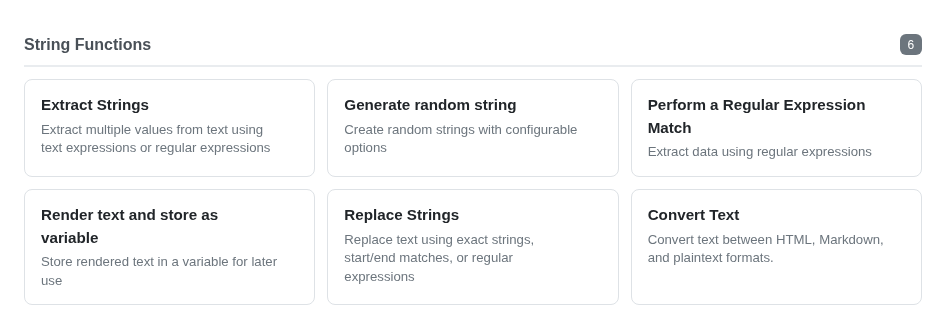
Those jobs previously required extra action steps, carefully combined text helpers, or custom expressions. We recently added three focused text actions to MSPintegrations: Extract Strings, Replace Strings, and Convert Text. Together, they make the common path much more direct.
Extract Several Values at Once
Extract Strings turns unstructured text into a result object with the named values your later actions need. Each definition can use a text expression or regular expression, and each value has its own behavior when nothing is found.
For example, a monitoring alert can extract a hostname, serial number, and alert state in one action. An optional location can remain blank while a missing serial number generates an exception and failure notification. That gives important data validation a clear place in the workflow instead of allowing an incomplete ticket to continue silently.
The result stays organized under one variable, such as {{custom.AlertDetails.SerialNumber}} and {{custom.AlertDetails.Status}}.
Replace Content Without Rebuilding the Text
Replace Strings gives workflows a direct find-and-replace action. It can replace an exact string, content between start and end markers, or text matched by a regular expression. Each definition can change the first match or every match, and multiple definitions run in order.
This is useful when you need to:
- Remove a legal signature or vendor boilerplate before creating a ticket note
- Rename a team, product, or customer-facing phrase throughout a message
- Redact a variable ID while preserving the label around it
- Replace a marked section without reconstructing everything before and after it
Mark a replacement as required when its absence should fail the action. Leave it optional when the workflow should record a warning and continue with the original text.
Convert Between HTML, Markdown, and Plaintext
Convert Text handles the format boundary between actions and integrations. It converts among HTML, Markdown, and Plaintext while preserving common structures such as headings, links, lists, emphasis, code blocks, and simple tables where the selected formats support them.
You can turn an HTML email into readable Plaintext for a prompt, convert Markdown output into HTML for an email, or normalize rich content before sending it to an API field. This avoids filling workflows with format-specific cleanup expressions.
Use Them Together
These actions are most useful as a small text-processing pipeline. A workflow can convert an HTML alert to Plaintext, extract its device and incident details, remove boilerplate, and then send clean structured content to a ticket action.
All three actions are available now in every production region for Hosted Mailboxes, Remote Mailboxes, Scheduled Tasks, Custom Workflows, and Macros. They require no new connection or account configuration.
Read the documentation for Extract Strings, Replace Strings, and Convert Text, then let us know what text-processing work you simplify with them.